
The [File] Menu
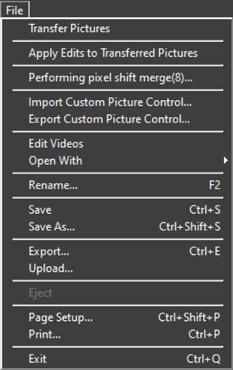
- [Transfer Pictures]
- Launch Nikon Transfer 2.
- [Take Pictures Remotely Using Camera Control Pro 2]
- Launch Camera Control Pro 2. This option is displayed only if Camera Control Pro 2 is installed.
- [Take Pictures Remotely with NX Tether]
- Launch NX Tether. This option is displayed only if NX Tether is installed.
- [Show Image Immediately After Shooting]
-
If this option is enabled, pictures will automatically be displayed in NX Studio after being downloaded to the computer using other applications.
- This option is displayed only if supported applications are installed.
- This option takes effect only if the corresponding option is enabled in the application used to download the pictures. For more information, see that application's online help.
- Wireless Transmitter Utility: Select [NX Studio] for [Open images with this application after transfer].
- Camera Control Pro 2: Select [Show it with NX Studio] for [When a new image is received from the camera].
- NX Tether: Select [NX Studio] for [Software to View Pictures After Transfer].
- [Apply Edits to Transferred Pictures]
- Enable this option to automatically apply the adjustments last selected in the [Adjustments] tab to new pictures downloaded to the same folder.
- [Performing pixel shift merge]
- Merge pictures taken using pixel shift on the camera and save them as separate files (0 Merge Pictures Taken Using Pixel Shift).
- [Import Custom Picture Control]
- Import Custom Picture Control files created with compatible cameras and software (0 Importing Custom Picture Control Files).
- [Export Custom Picture Control]
- Export Custom Picture Controls saved on NX Studio as files (0 Exporting Custom Picture Control Files).
- [Launch Picture Control Utility 2]
- Launch Picture Control Utility 2. This option is displayed only if Picture Control Utility 2 is installed.
- [Edit Videos]
- Launch the preset video editing software. The software included in your operating system is set by default. You can change the software via [Open with Application] in the options dialog (0 The Options Dialog, [Open with Application]).
- [Open With]
- Open the current picture using other software. Software can be added to the menu using [Register].
- [Rename]
- Rename the current picture.
- [Save]
- Save changes to image adjustments or XMP/IPTC metadata (0 [Save]).
- [Save As]
- Save the current picture under a new name.
- [Export]
- Export the current picture in a selected format (0 Saving Pictures in Other Formats).
- [Eject] or [Disconnect](Windows)/[Eject] (macOS)
- Eject removable media. In Windows, this option can also be used to disconnect a selected network drive.
- [Page Setup]
- Adjust printer settings.
- [Print]
- Print the current picture (0 Printing Pictures).
- [Exit] (Windows Only)
- Exit NX Studio.
Epson Printers
If installed, the Epson Easy Photo Print utility or Epson Print Layout plugin can be launched from NX Studio.
- Installing Epson Easy Photo Print adds a [Print with E-Photo] option to the [File] menu.
- Likewise, installing Epson Print Layout adds a [Print with Epson Print Layout] option to the [File] menu.
- [E-Photo] and [Epson Print Layout] icons are also added to the toolbar and can be used to launch the corresponding software.